September 14th, 2026
New
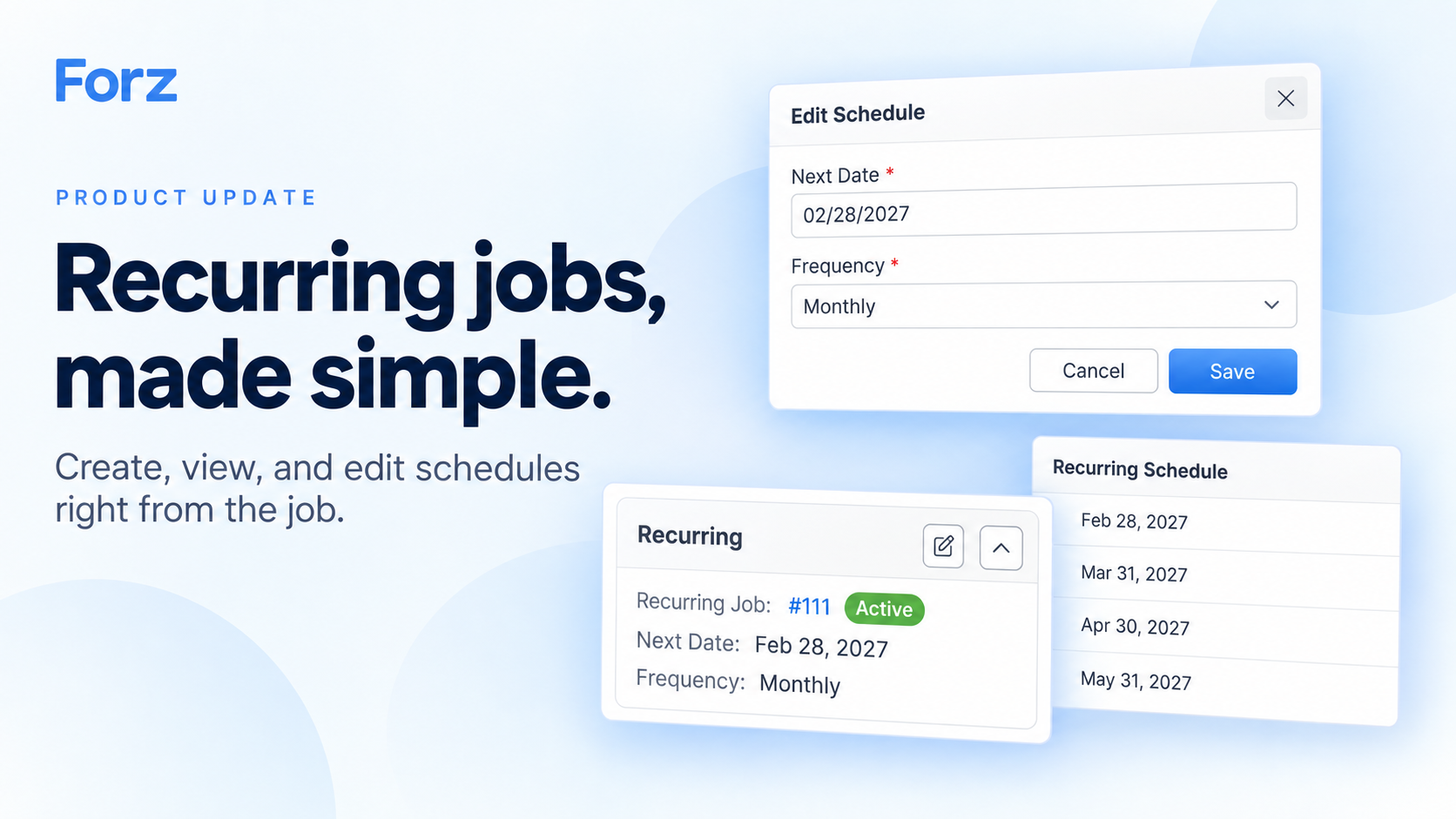
Recurring jobs: create and manage repeat work from the job
Set up repeat work from the job you're already viewing. The new Recurring card brings the schedule into job details, so you can create a recurring job, see what's coming next, or adjust the frequency in one place.
What's new
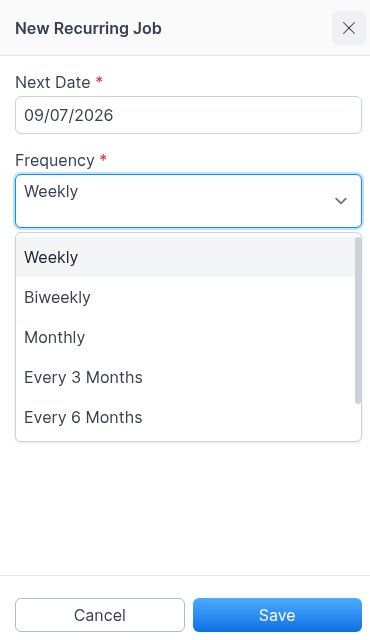
🔁 Make an existing job recurring. Click Make Recurring, choose a date and frequency, and save. Forz carries over the customer, service address, assignee, job description, and products and services into the recurring template.
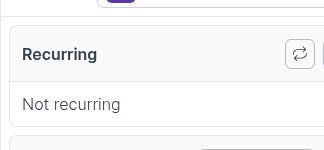
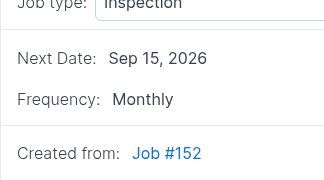
📋 See the schedule on the job. The Recurring card shows the linked recurring job, its Active or Inactive status, the Next Date, and the Frequency. Open the template directly from its number.
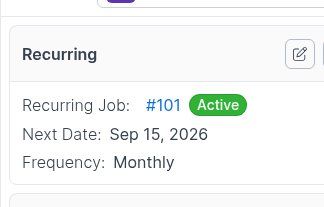
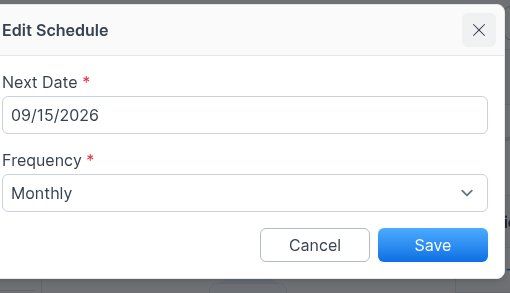
✏️ Edit the schedule in place. Use Edit Schedule to change the next date or frequency. Saving takes you back to the same job with the updated details.
🔗 Follow the connection both ways. The recurring template's Created from link takes you back to the original job. Jobs generated from the schedule also link to their recurring template.
Monthly schedules keep their intended day through shorter months. A January 31 job repeats on February 28, March 31, and April 30.
Why it matters
Less setup for repeat visits. Turn an existing maintenance or inspection job into a recurring schedule without re-entering its details.
Fewer trips between screens. Check the next visit or adjust the schedule while you're working on the job.
A clear link to the original work. Move between the source job, recurring template, and generated jobs without searching.
Getting started
Open an existing Job.
Find the Recurring card in the details column and click Make Recurring.
Review Next Date and choose Weekly, Biweekly, Monthly, Every 3 Months, Every 6 Months, or Yearly.
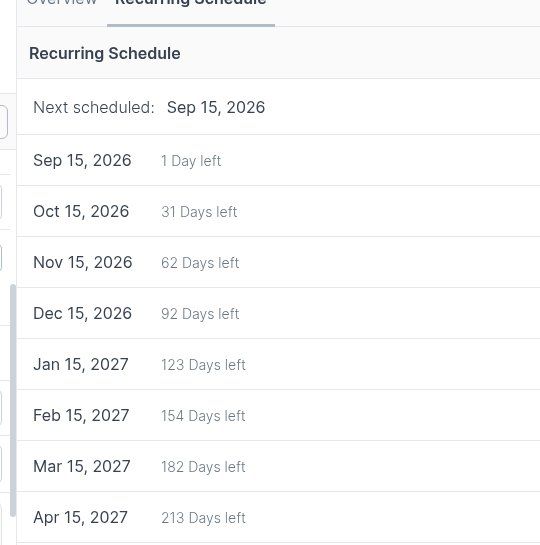
Click Save to open the recurring template. Use Recurring Schedule to review upcoming dates, or Created from to return to the original job.
Already linked to a recurring template? Open Edit Schedule from the job's Recurring card to make a change.
Your role's recurring-job permissions control which viewing, creation, and editing actions are available.